Switch from Salesforce to SalesCrew
Run one Salesforce Data Export, load the CSV zip into your own SalesCrew database, and connect mailboxes for 90 days of email history.
- Accounts, contacts, opportunities, notes, tasks
- Imported within 7 business days
- Unlimited seats on every tier
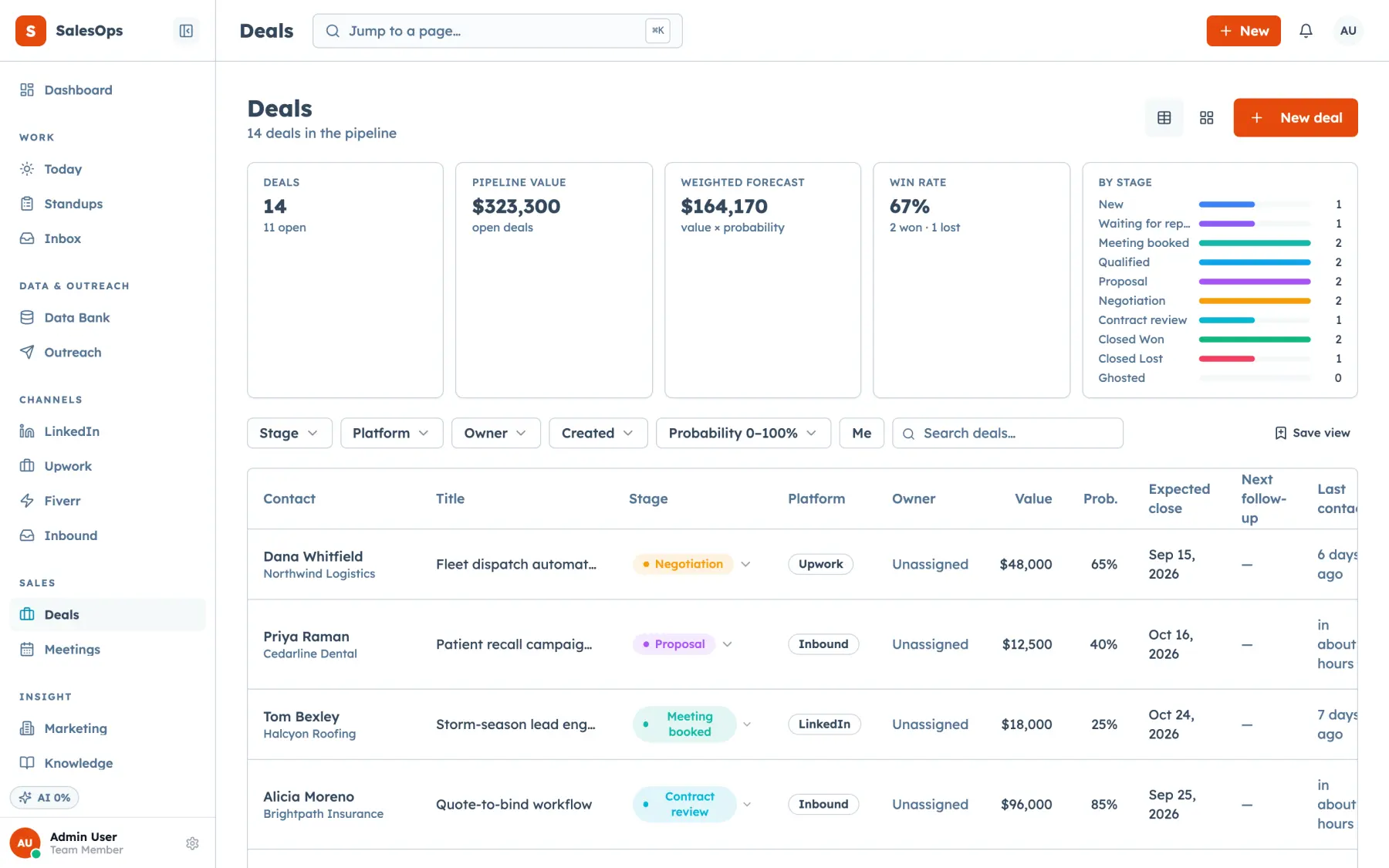
A Salesforce to SalesCrew move starts from one Salesforce Data Export zip: accounts, contacts, leads, opportunities, notes and tasks load into your own SalesCrew database, email history comes from each rep's mailbox over IMAP, and a standard import completes within 7 business days with migration help on every tier.
Before you run the export
- Salesforce's Data Export service bundles every object you select into one zip of CSV files, found in Setup under Data Export (checked on trailhead.salesforce.com, September 2026).
- Salesforce deletes that zip 48 hours after the ready email, so download it the same day.
- Enterprise, Performance and Unlimited editions can export every 7 days; Professional and Developer editions every 29 days.
- SalesCrew matches every imported contact on email address, fills gaps in an existing record and never overwrites it.
Where each Salesforce object lands in SalesCrew
The CSV file each object arrives in, and the SalesCrew record it becomes.
| Salesforce object | File in the Data Export zip | Where it lands in SalesCrew |
|---|---|---|
| Accounts | Account.csv | Companies, created with company_create |
| Contacts | Contact.csv | Data Bank import: columns mapped, matched on email, batch-tagged with an audit row |
| Leads | Lead.csv | Contacts in their own tagged Data Bank batch, so open leads stay separate |
| Opportunities | Opportunity.csv | Deals, created with deal_create in the stages you set up |
| Tasks | Task.csv | Tasks, created with task_create on the matching contact or deal |
| Notes | Note.csv (plus attachments when you tick that box) | Notes, added with note_add to the matching record |
| Email threads | Stay in each rep's mailbox | Last 90 days of INBOX threads backfilled on the first IMAP sync |
Salesforce Data Export behaviour checked on trailhead.salesforce.com (Data Export module), September 2026. File names follow the Salesforce object names in your org.
How a Salesforce migration runs
Five steps. A Salesforce admin runs the export; we'll run the import with you.
- 1
Run a Data Export in Salesforce
In Setup, search Data Export, choose Export Now, tick Include all data and, if you want files, the attachments option. Download the zip within 48 hours of the email.
- 2
Recreate your opportunity stages
Set up a SalesCrew pipeline whose stages match your Salesforce stage picklist, so every opportunity lands in the stage your team already knows.
- 3
Load contacts and leads into the Data Bank
Upload Contact.csv and Lead.csv as two batches and map their columns once. Each import writes an audit row, and each contact keeps the tag of the batch it came in.
- 4
Create companies, deals, notes and tasks
Account, Opportunity, Note and Task rows load through company_create, deal_create, note_add and task_create, linked by the Salesforce IDs in each file.
- 5
Connect every rep's mailbox
Each rep connects Gmail, Outlook or cPanel mail over IMAP and SMTP. The first sync backfills 90 days of threads, and replies thread onto the right contact from then on.
Your Salesforce IDs do the linking
Every row in a Salesforce export carries its own ID and the IDs of the records it belongs to. An opportunity row names its AccountId, and a task row names its WhoId and WhatId. You keep those columns during the import, and they tell SalesCrew which company, contact and deal each record attaches to. That's how a five-year account history arrives in one piece.
Your reports and automations get rebuilt rather than copied. In SalesCrew, each pipeline, stage and cadence is set up in the app or through the SalesCrew MCP server, where every action the UI offers is also a tool. An AI client can then move a deal or log a note for you, and every external action it proposes waits in the approval queue for a person first.
Schedule one more export before you cancel
Questions about leaving Salesforce
- How do I export all my data from Salesforce?
- Use Salesforce's Data Export service. In Setup, type Data Export in Quick Find, then choose Export Now or Schedule Export and tick Include all data. Salesforce emails you when a zip of CSV files is ready, and deletes that zip 48 hours after the email (checked on trailhead.salesforce.com, September 2026).
- How long does a Salesforce to SalesCrew migration take?
- A standard import into SalesCrew completes within 7 business days of the export files reaching us. Your reps connect their mailboxes on day one, so email keeps flowing while accounts, opportunities and tasks load.
- What happens to Salesforce leads and contacts?
- Both become SalesCrew contacts. Leads.csv and Contact.csv load into the Data Bank as separate tagged batches, so you can still tell a converted contact from an open lead. Rows match on email, and a record found in both files is filled in once and never overwritten.
- Can I keep sending through Salesforce after I move?
- Yes. SalesCrew pushes campaigns to Salesforce as its outbound send path, so a team that still sends list email from Salesforce can run it from SalesCrew during the changeover or for good.
- Does SalesCrew charge per seat after a Salesforce move?
- No. Every SalesCrew tier includes unlimited seats, from $299 a month, and migration help is part of every tier. Your whole Salesforce user list moves across without a licence count.