Switch from HubSpot to SalesCrew
Export your HubSpot records to CSV, load them into your own SalesCrew database, and connect your mailboxes for 90 days of email history.
- Contacts, companies, deals, notes, tasks
- Done within 7 business days
- Migration help on every tier
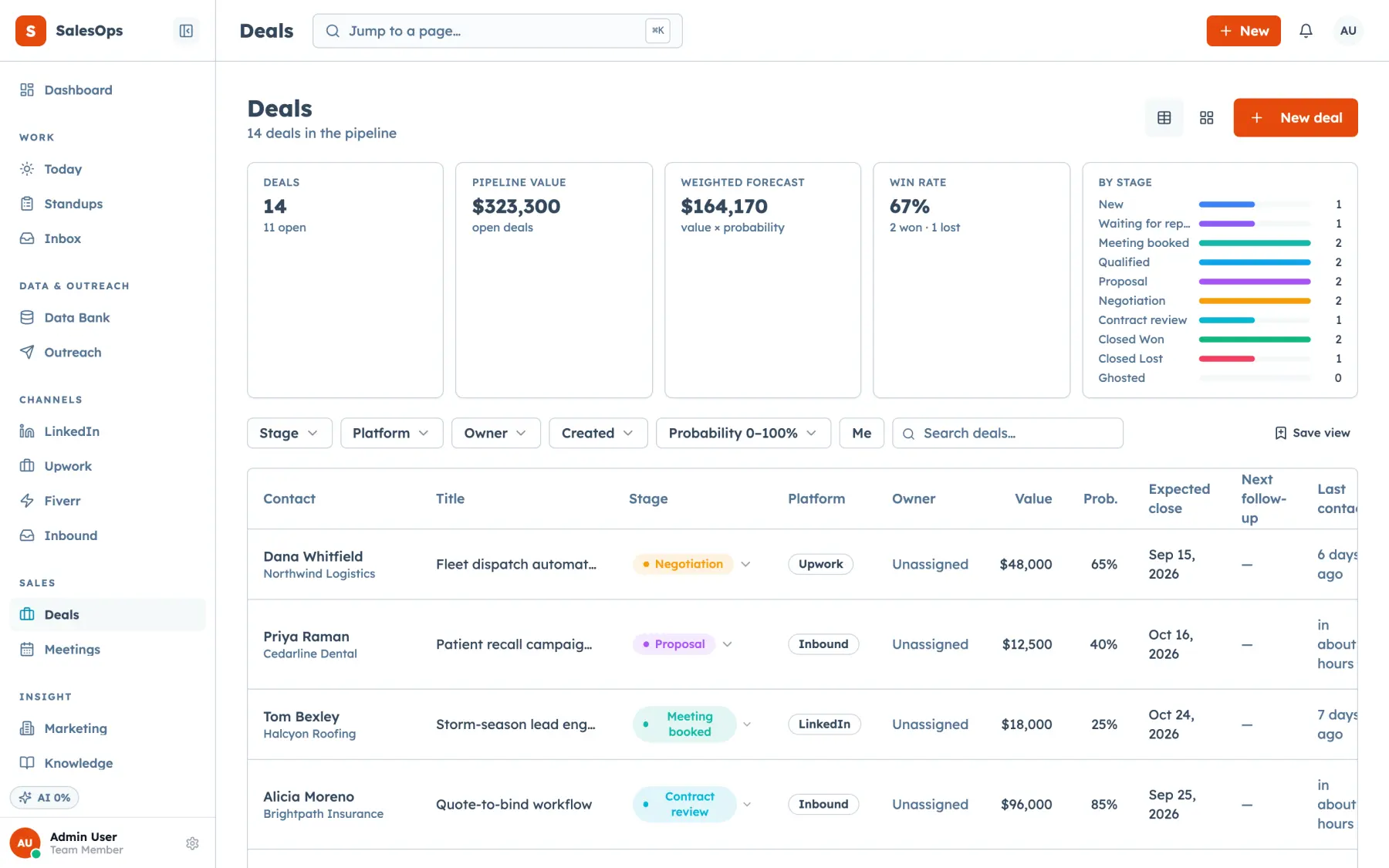
A move from HubSpot to SalesCrew runs on HubSpot's own CSV export: contacts, companies, deals, notes and tasks come across, email history arrives through your mailbox over IMAP, and a standard import completes within 7 business days with migration help included on every tier.
What to know before you start
- HubSpot exports contacts, companies and deals as CSV, XLSX or XLS, and emails you a download link that expires after 30 days (checked on knowledge.hubspot.com, September 2026).
- SalesCrew matches imported contacts on email address. An existing contact is filled in where it has gaps and never overwritten.
- Email history comes from your mailbox: the first IMAP sync backfills the last 90 days of threads.
- Seats are unlimited on every SalesCrew tier, from $299 a month, so your whole team moves at once.
Where each HubSpot record lands in SalesCrew
The HubSpot export route for each record type, and how SalesCrew brings it in.
| HubSpot record | How you export it from HubSpot | Where it lands in SalesCrew |
|---|---|---|
| Contacts | Record export, as CSV, XLSX or XLS | Data Bank import: columns mapped once, matched on email, batch-tagged with an audit row |
| Companies | Record export, as CSV, XLSX or XLS | Created with company_create and linked to their contacts |
| Deals | Record export, as CSV, XLSX or XLS | Created with deal_create into the pipeline and stages you set up |
| Tasks | Export from the Tasks view | Created with task_create against the matching contact or deal |
| Notes | Custom report builder or the Engagements API | Added to the matching record with note_add |
| Email threads | Stay in your mailbox | Last 90 days of INBOX threads backfilled on the first IMAP sync |
HubSpot export routes checked on knowledge.hubspot.com/import-and-export/export-records and knowledge.hubspot.com/account-management/export-your-content-and-data, September 2026.
How a HubSpot migration runs
Five steps. You run the exports in HubSpot; we'll run the import with you.
- 1
Export your records from HubSpot
A user with HubSpot export permissions exports contacts, companies and deals as CSV, then tasks from the Tasks view. Pull notes with a custom report. Download each file before its link expires.
- 2
Set up your pipeline and stages
Recreate your HubSpot deal pipeline in SalesCrew with the same stage names, so every deal lands where your team expects to find it.
- 3
Load contacts into the Data Bank
Upload the contacts CSV, map its columns and tag the batch. Rows match on email address, and each import leaves an audit row you can trace later.
- 4
Create companies, deals, notes and tasks
The remaining files load through contact_create, company_create, deal_create, note_add and task_create. A migrated deal behaves exactly like one your team created by hand.
- 5
Connect your mailboxes
Each rep connects Gmail, Outlook or cPanel mail over IMAP and SMTP. The first sync pulls 90 days of threads, and new replies land in the same conversation.
Sequences and workflows move as cadences
Your HubSpot sequences become SalesCrew cadences. You rebuild each one as a multi-step cadence on the mailbox pool, with suppression checked when the audience is frozen and again at send. It's a good moment to keep only the sequences your team still runs.
Everything you rebuild is also an MCP tool. That means your AI client can enroll a contact in a cadence, add a note or move a deal. Every AI-proposed external action queues for approval by default, so a person approves or rejects it first. See how that works on the SalesCrew MCP server page.
Keep your HubSpot export files
Questions about leaving HubSpot
- How long does it take to migrate from HubSpot to SalesCrew?
- A standard import into SalesCrew completes within 7 business days. The clock starts once your HubSpot export files are in hand. Mailboxes connect on day one, and the first sync backfills 90 days of email threads while the records load.
- Will I lose my HubSpot email history when I switch?
- Your email history comes across through your mailbox, not through HubSpot. You connect each Gmail, Outlook or cPanel mailbox to SalesCrew over IMAP, and the first sync backfills the last 90 days of INBOX threads. The history window is configurable per mailbox.
- How do I export notes and tasks from HubSpot?
- Tasks export from HubSpot's Tasks view. Notes, calls and emails sit outside HubSpot's standard record export, and HubSpot points you to its custom report builder or its Engagements API for those (checked on knowledge.hubspot.com, September 2026). Either route gives you a file SalesCrew loads with note_add and task_create.
- What happens to my HubSpot pipeline stages?
- You set up the same stages in SalesCrew before the deals load. Each pipeline and stage is configurable in the app or through the MCP tools, so a HubSpot deal in Proposal Sent lands in Proposal Sent. Deals are then created with deal_create against the matching company and contact.
- Does migration help cost extra?
- Migration help is included on every SalesCrew tier, starting at $299 a month with unlimited seats. Every user on your team gets a seat, so nobody waits for a licence.