Switch from GoHighLevel to SalesCrew
Export each sub-account's contacts, companies and opportunities as CSV, and give every client their own SalesCrew database with 90 days of email.
- One database per client
- Imported within 7 business days
- Migration help on every tier
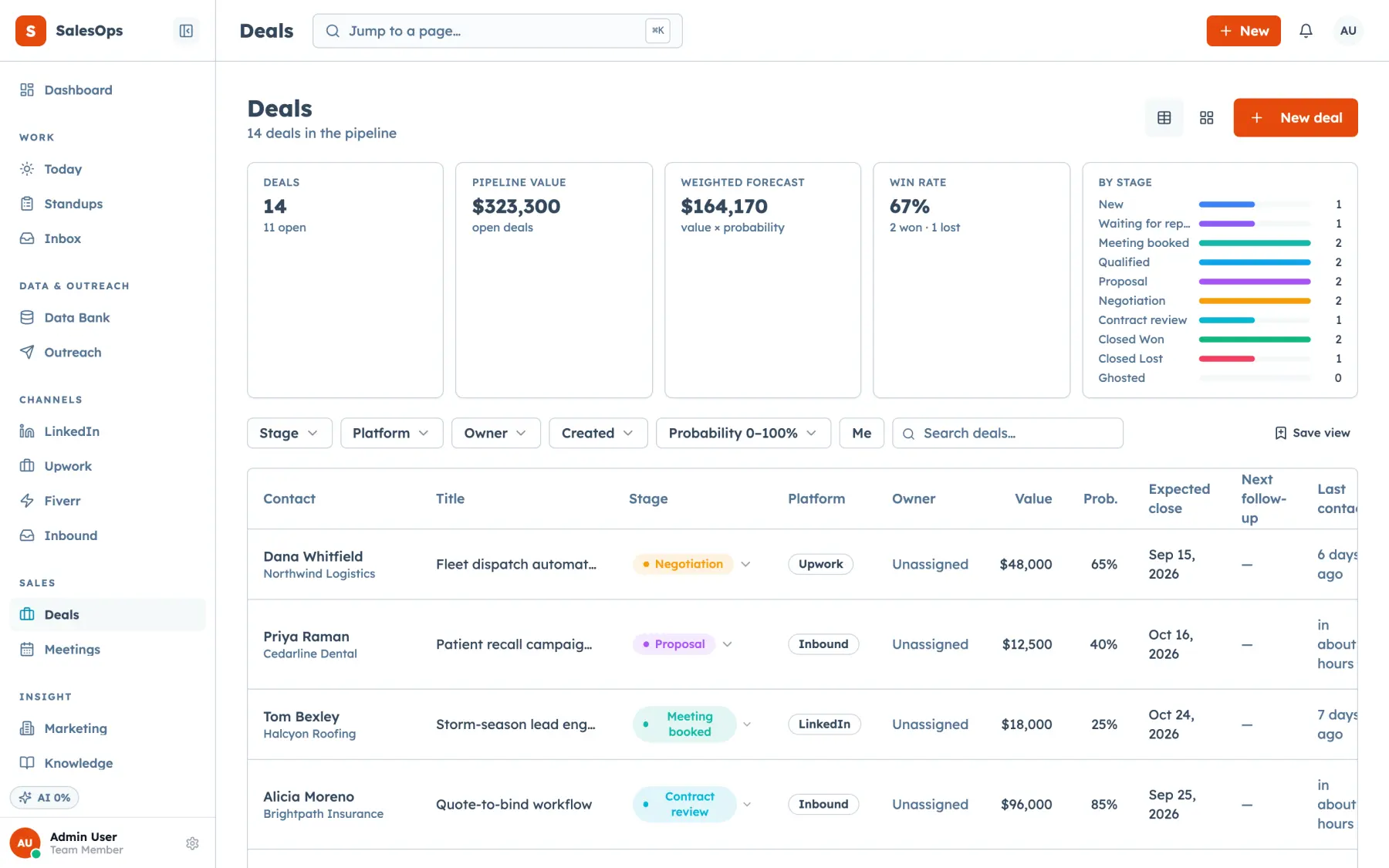
A GoHighLevel to SalesCrew move runs one sub-account at a time: contacts, companies, opportunities and notes come across from HighLevel's CSV exports into that client's own SalesCrew database, email history returns over IMAP, and a standard import completes within 7 business days with migration help on every tier.
What to know before you export
- HighLevel exports contacts from Smart Lists, companies from Contacts, Companies and opportunities from the Opportunities menu (checked on help.gohighlevel.com, September 2026).
- HighLevel contact exports include only visible columns, cut notes at 255 characters and stay downloadable for 30 days.
- Every SalesCrew client runs in their own database, so each sub-account becomes a separate instance with its own full export.
- SalesCrew matches imported contacts on email address, fills gaps in an existing record and never overwrites it.
Where each HighLevel record lands in SalesCrew
Run these exports inside the sub-account you're moving.
| HighLevel record | How you export it from HighLevel | Where it lands in SalesCrew |
|---|---|---|
| Contacts | Contacts, Smart Lists, More, Export (CSV) | Data Bank import: columns mapped, matched on email, batch-tagged with an audit row |
| Companies | Contacts, Companies, menu, Export (CSV) | Companies, created with company_create |
| Opportunities | Opportunities, menu, Export Opportunities | Deals, created with deal_create in the stages you set up |
| Notes | Included in the contact export | Notes, added with note_add to the matching contact |
| Tasks | Recreated from each rep's open task list | Tasks, created with task_create on the matching contact or deal |
| Email threads | Stay in the client's mailbox | Last 90 days of INBOX threads backfilled on the first IMAP sync |
HighLevel export steps checked on help.gohighlevel.com (Contacts export as CSV, Export companies, Opportunities FAQs), September 2026.
How a GoHighLevel migration runs
Five steps per sub-account. You run the exports; we'll run the import with you.
- 1
Show every field, then export contacts
In the sub-account, open Manage Fields and show every column you want to keep. Export contacts from Smart Lists, then download the file from Bulk Actions.
- 2
Export companies and opportunities
Export all companies from Contacts, Companies, and all opportunities from the Opportunities menu. Note each pipeline's stage names as you go.
- 3
Spin up the client's SalesCrew instance
Each client gets their own database. Create the pipeline and stages to match the HighLevel pipeline, or apply a snapshot you've already built.
- 4
Import contacts, companies and deals
Contacts load into the Data Bank. Companies, opportunities and notes then load through company_create, deal_create and note_add, and open tasks through task_create.
- 5
Connect the client's mailboxes
Connect Gmail, Outlook or cPanel mail over IMAP and SMTP. The first sync backfills 90 days of threads onto the right contacts.
Each client leaves with their own database
On SalesCrew, a client isn't a sub-account inside your platform. Each client runs in their own Supabase project, so their data never shares a database with another client's. If a client ever leaves you, the handover is the whole database: a full Postgres dump plus CSV of every table.
You still run every client from one place. The SalesCrew agency plan covers your client instances, and snapshot export and apply copies a proven setup to the next client. Every action is also a tool on the SalesCrew MCP server, and each external action an AI client proposes waits in the approval queue for a person.
Copy long notes before you close a sub-account
Questions about leaving GoHighLevel
- How do I export contacts from GoHighLevel?
- Open Contacts, then Smart Lists, select the contacts and choose More, then Export. HighLevel builds the CSV on its servers and puts it under Contacts, Bulk Actions for 30 days, and only admins can download it (checked on help.gohighlevel.com, September 2026). The file holds the columns visible in your table, so add every field under Manage Fields first.
- Can I move one GoHighLevel sub-account at a time?
- Yes. Each client sub-account moves into its own SalesCrew database, one Supabase project per client. You export that sub-account's contacts, companies and opportunities, and a standard import completes within 7 business days per client.
- What happens to notes when I leave GoHighLevel?
- Notes come across in the contact export and load onto each contact with note_add. HighLevel truncates notes longer than 255 characters in that export (checked on help.gohighlevel.com, September 2026), so copy any long notes you need before the sub-account closes.
- How do I rebuild a GoHighLevel snapshot in SalesCrew?
- Build the setup once in SalesCrew, then use snapshot export and apply to copy pipelines, stages and cadences into the next client's instance. Every configuration step is also an MCP tool, so an AI client can apply it for you with approval.
- What does SalesCrew cost for an agency leaving GoHighLevel?
- The SalesCrew Agency tier is $1,200 a month with unlimited seats, and migration help is included on every tier. The Core tier starts at $299 a month.