How to use LinkedIn Sales Navigator with a CRM
Sales Navigator finds and watches the people. Your CRM holds the record, the next step and every touch across LinkedIn and email.
The short answer
- LinkedIn Sales Navigator works best with a CRM when each tool does one job: Sales Navigator finds and tracks leads, and the CRM holds the record, the owner and the next step.
- Sales Navigator Advanced and Advanced Plus include CRM integrations with Salesforce, HubSpot, Microsoft Dynamics and Oracle, per LinkedIn's plan comparison as of September 2026. Core does not list them.
- Every LinkedIn touch belongs in the CRM beside the email thread, so a rep can see the full conversation before the next message.
- SalesCrew runs LinkedIn as a queue and ledger: a rep sends each message on LinkedIn, and SalesCrew records the touch and the reply on the contact.
Sales Navigator plans and CRM features
Read on LinkedIn's Sales Navigator plan comparison.
| Feature | Core | Advanced | Advanced Plus |
|---|---|---|---|
| Advanced CRM integrations | Not listed | Included | Included |
| Create leads and contacts in the CRM | Not listed | Included | Included |
| CRM embedded experiences and profiles | Not listed | Not listed | Included |
| List price, monthly billing | US$119.99 a month | US$159.99 a month | On request |
Checked on business.linkedin.com/sales-solutions/compare-plans, September 2026.
A five-step routine for Sales Navigator and your CRM
- 1
Build the lead list in Sales Navigator
Use saved searches for your ideal buyer, so new matches arrive without a fresh search each week.
- 2
Put the person in the CRM before the first touch
Create the contact with company, title and LinkedIn URL. On an Advanced plan with a supported CRM, create it from Sales Navigator directly.
- 3
Set one owner and one next step
Two reps messaging the same person on LinkedIn is the fastest way to lose them. The CRM owner decides who writes.
- 4
Log each LinkedIn touch
Connection request, message and reply each get a line on the record, next to the email thread.
- 5
Move the deal on replies, not views
A profile view is a signal. A reply is a stage change, and it should pause any email follow-up to that person.
Why the CRM, not Sales Navigator, should be the record
Sales Navigator is built around LinkedIn's data, and it's very good at finding and watching people. Your deal lives in more places than LinkedIn, though. The buyer answers an email, books a call and forwards your proposal. Only the CRM sees all of that.
So treat Sales Navigator as the prospecting tool and the CRM as the memory. When a rep leaves, the saved searches go with their seat. The contacts, the history and the next steps stay in the CRM for whoever picks up the account.
How SalesCrew runs LinkedIn beside email
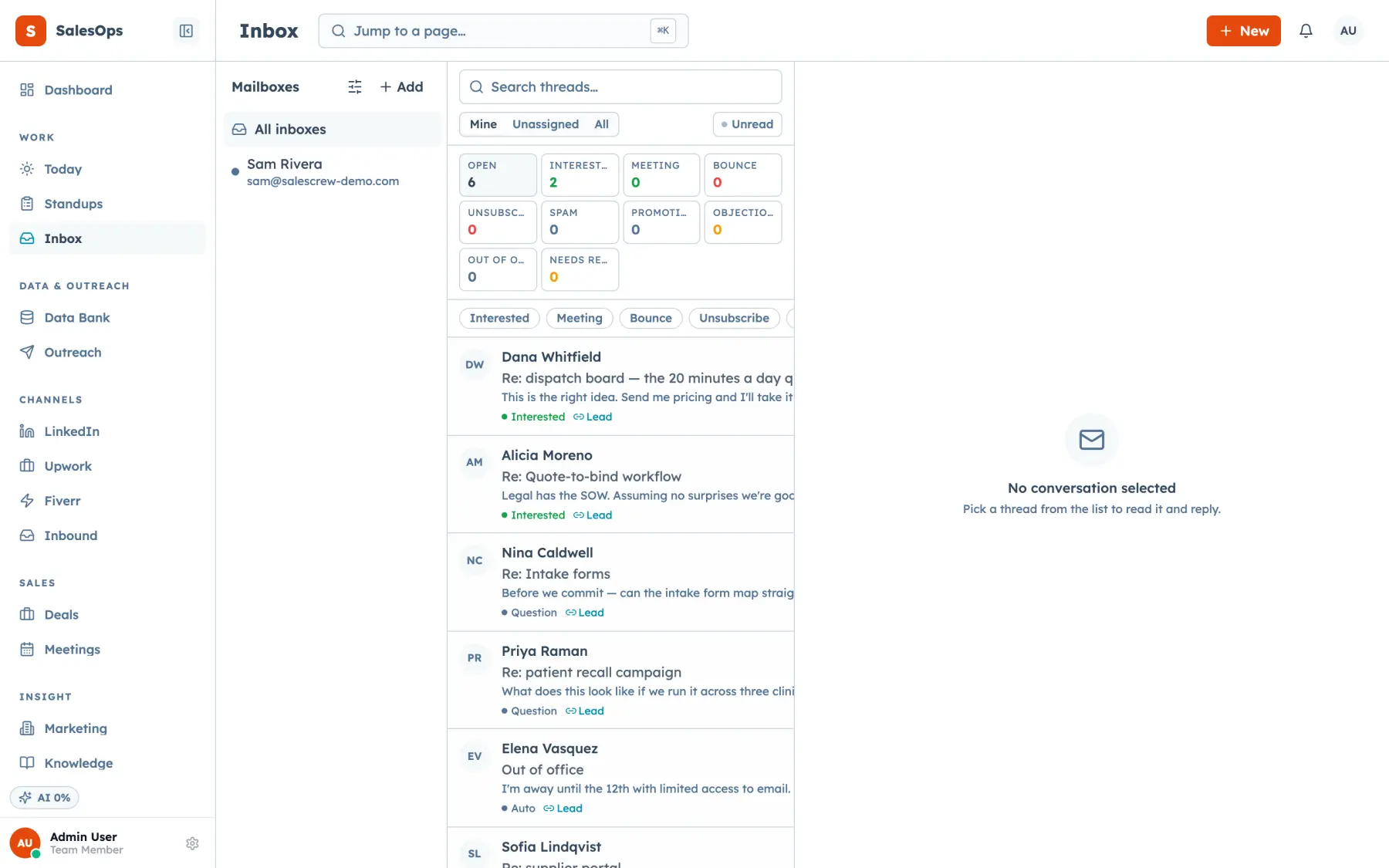
SalesCrew runs LinkedIn as a queue and a ledger that a person works by hand. You add contacts to a rep's LinkedIn queue, the rep sends each request or message on LinkedIn, and marks it done. SalesCrew writes it to the ledger on the contact, beside the email threads from the unified inbox.
When the prospect replies, the rep logs the reply on the record, so the next person to open it sees the whole conversation. The same queue works over MCP from Claude, ChatGPT or Cursor. Seats are unlimited on every plan, so every rep with a Sales Navigator licence gets a SalesCrew login at no extra cost.
Don't let LinkedIn and email run on separate clocks
Questions
- Which Sales Navigator plan integrates with a CRM?
- Advanced and Advanced Plus. LinkedIn's plan comparison lists Advanced CRM Integrations and lead and contact creation on both, and not on Core, checked September 2026. CRM embedded experiences and profiles are listed on Advanced Plus only.
- Does Sales Navigator sync with Salesforce and HubSpot?
- Yes, on the Advanced plans. LinkedIn names Salesforce, HubSpot, Microsoft Dynamics and Oracle among its CRM integrations, as of September 2026. HubSpot also lists LinkedIn actions inside its sequences, which need a Sales Navigator subscription.
- How much does Sales Navigator cost?
- Core lists at US$119.99 a month and Advanced at US$159.99 a month, per LinkedIn's plan comparison checked September 2026. Advanced Plus is priced on request. Annual billing lowers the monthly figure on both listed plans.
- Should LinkedIn messages be sent by a person or a tool?
- By a person, from their own LinkedIn account. The rep knows the context and can adjust the message before it goes. Let your CRM queue the task and log the result, and let the rep click send.